A link can look familiar without taking you where you expect.
A QR code makes that problem harder because the destination is hidden inside an image. You see a square pattern, a company logo, and a message telling you to scan. You do not see the website until your phone decodes it.
Attackers use that gap to hide fake sign-in pages, fraudulent payment portals, malicious downloads, and pages that ask for one-time codes.
You do not need to investigate every suspicious link like a security analyst. For links and QR codes received by email, the safer goal is simpler: reveal the destination, decide whether the request matches the process you expected, use an official route when you are unsure, and report the message.
For a deeper explanation of the attack technique, read QR Code Phishing: How a Simple Scan Becomes Account Takeover. For detection and investigation details, read How to Detect and Stop QR Code Phishing Before It Becomes Account Takeover.
Why a legitimate-looking email can still be dangerous
Phishing emails often copy normal business workflows. They may mention Microsoft 365, SharePoint, DocuSign, payroll, voicemail, delivery updates, invoices, HR documents, or account verification. The message may use a familiar logo, a professional layout, and urgent language.
None of those details prove that the destination is legitimate. A message can display the right brand while sending you to a domain controlled by an attacker. A QR code can also move the action from your work computer to your phone, where inspecting the destination is harder.
The UK's National Cyber Security Centre recommends extra caution with QR codes received by email, especially because personal devices may not have the same protections as employer-managed systems.
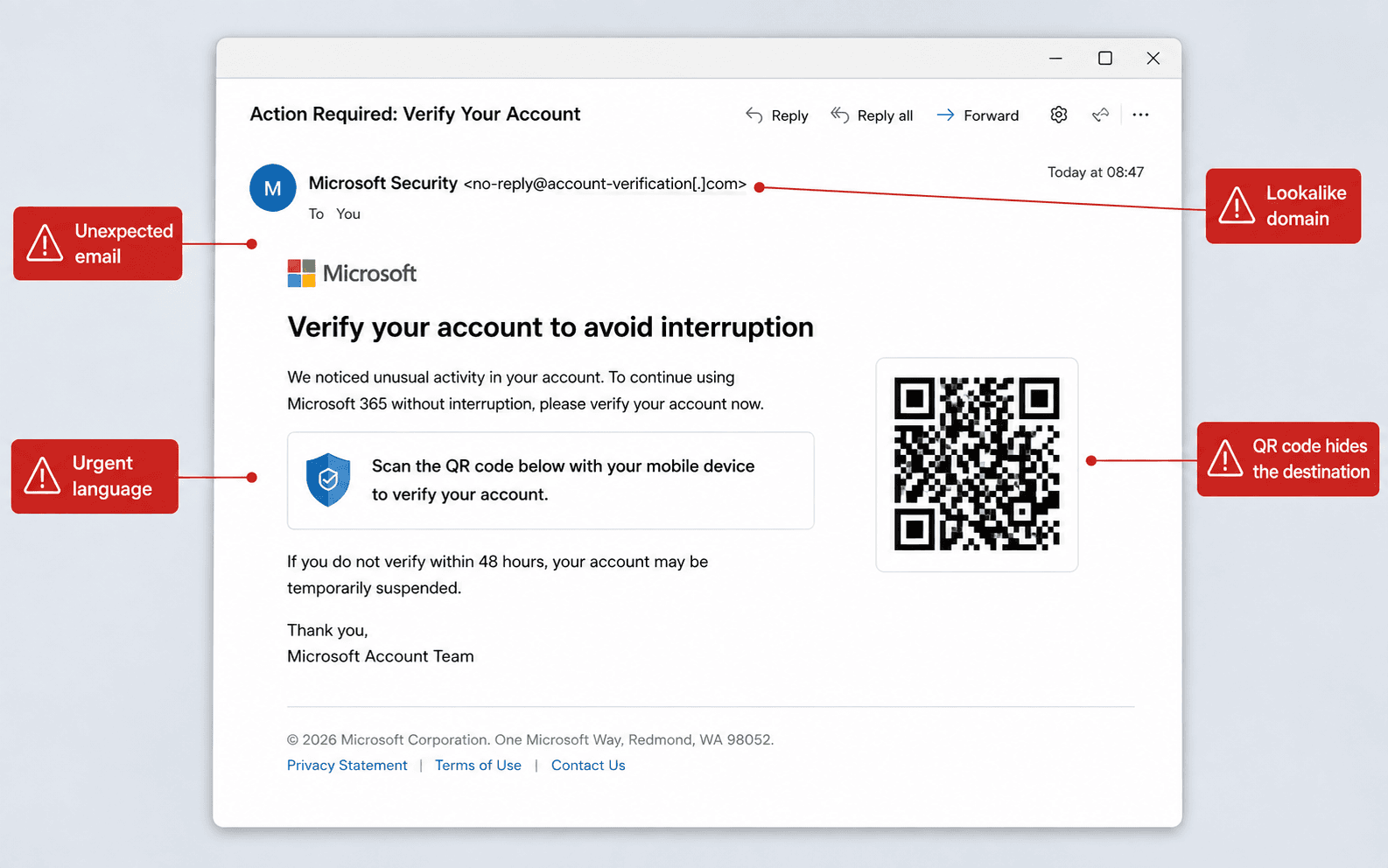
Figure 1 - A realistic email lure: the QR code hides the destination, while the message uses urgency and a familiar brand to make scanning feel routine.
Reveal the destination without opening it
Your first step is to see the destination as text before the browser visits it.
For a normal link:
- On a desktop, hover over the link and read the destination shown by the email client or browser.
- If you need a clearer view, choose Copy link address and paste it into a plain-text note.
- Do not paste the link into the browser address bar and press Enter.
For a QR code received by email:
- Use the scanner built into your phone or operating system, not an unknown QR scanner app.
- Stop at the preview screen that shows the decoded URL.
- Do not open the destination until you have checked whether it matches the message.
A safe preview should let you read something like this before opening:
https://microsoft.com.security-check.example/login
The important question is not "Does this contain a familiar word?" It is "Does this destination belong to the organization I expected?"
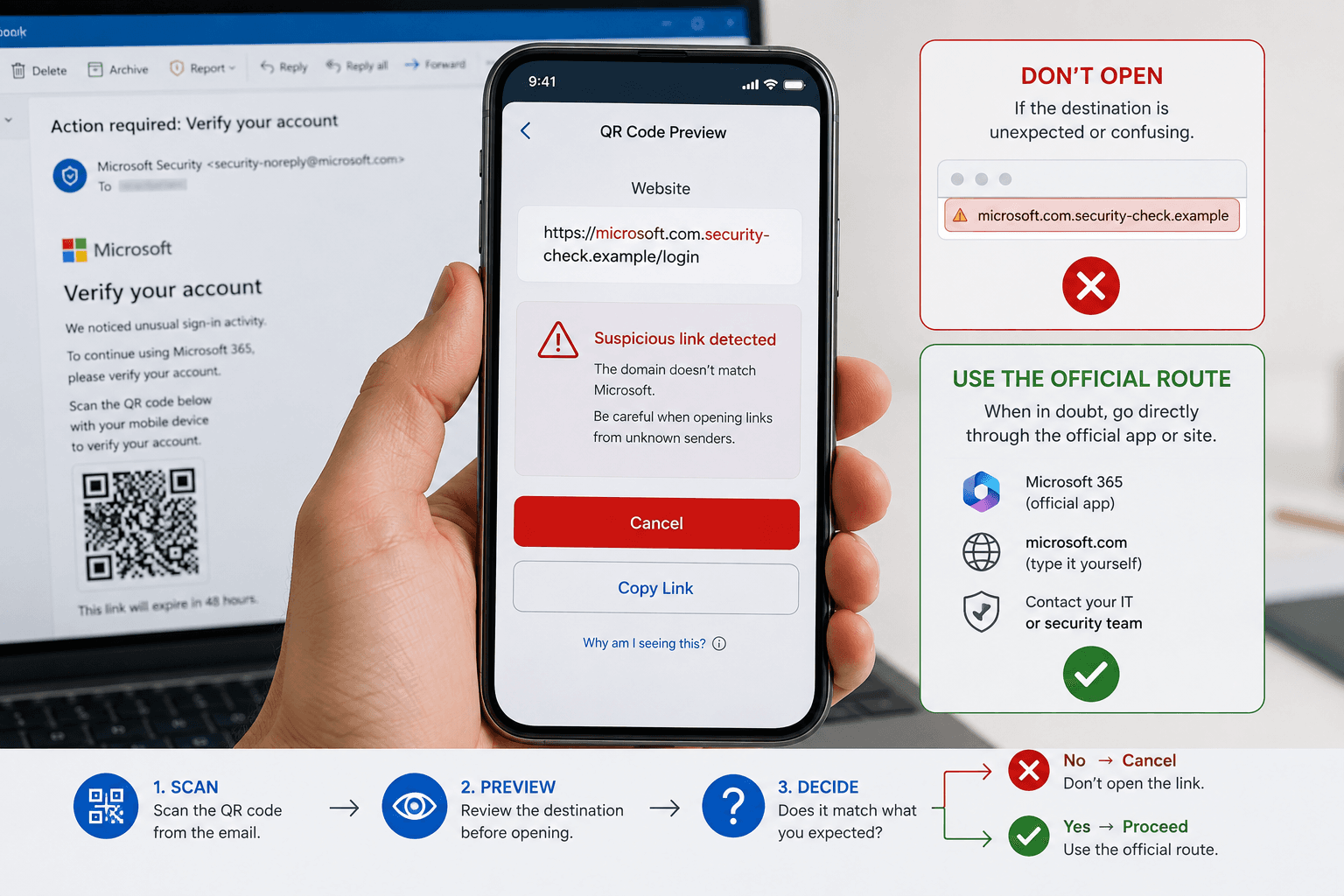
Figure 2 - The preview is the decision point. If the destination is unexpected or confusing, cancel and use the official route.
Check whether the request makes sense
Before reading the URL in detail, ask whether the message belongs in your normal workflow.
Use these questions:
- Was I expecting this email, document, invoice, delivery update, or password notice?
- Does this organization normally ask me to use a QR code for this process?
- Is the message asking for credentials, payment details, an MFA code, account permissions, or a download?
- Is the sender creating urgency around a suspended account, expiring password, missed voicemail, or unpaid invoice?
- Can I reach the same service from the official app, a saved bookmark, or an address I already know?
If the request is unexpected or sensitive, avoid the embedded link. Open the service through an official route instead.
Read simple domains carefully
For clear, ordinary URLs, focus on the hostname: the part after https:// and before the next /.
In this example:
https://microsoft.com.security-check.example/login
the hostname is:
microsoft.com.security-check.example
The site is not under microsoft.com. The trusted name appears inside a longer hostname controlled by someone else.
Compare these examples:
https://account.example.com
https://account-example.com
https://example-account.com
https://examp1e.com
Small changes matter. Added words, swapped letters, numbers that look like letters, and unexpected endings can place the website under another party's control.
This manual check has limits. Do not try to judge long, complex, unfamiliar, or internationalized URLs by eye. Some URLs include redirect parameters, tracking wrappers, explicit ports, user information before an @ symbol, or domain endings that are not obvious. When the URL looks complicated or you are unsure, treat that as enough reason to stop and use the official website or app.
HTTPS does not prove the site is legitimate
A malicious site can use HTTPS.
HTTPS protects the connection between your browser and the website. It does not prove that the website belongs to the company it claims to represent. Attackers can obtain valid certificates for domains they control, so a fake sign-in page can show a secure connection while still collecting your password.
The same applies to company logos, privacy notices, CAPTCHA pages, and familiar sign-in forms. These details can be copied.
Trust the destination and the context, not the appearance of the page.
Use the official route when anything feels off
When a link or QR code asks you to sign in, approve access, pay money, open a document, or download a file, the safest response is often to bypass the message entirely.
Use one of these routes:
- Open the organization's official app.
- Use a bookmark you already trust.
- Type the known website address yourself.
- Contact the sender through a known phone number, chat, or internal channel.
- Forward or report the original email to IT or security.
The FTC gives similar advice: inspect the URL before opening it and avoid unexpected QR codes in messages that pressure you to act quickly.
A 30-second check before opening
Use this sequence whenever a link or QR code in an email feels uncertain:
- Pause. Do not let urgency make the decision for you.
- Reveal the destination. Hover, long-press, copy to a plain-text note, or preview the QR code without opening it.
- Check the context. Ask whether the request matches a process you expected.
- Read simple domains. Look for obvious mismatches, misspellings, and unfamiliar endings.
- Respect uncertainty. If the URL is long, complex, shortened, or unfamiliar, do not try to solve it manually.
- Use a trusted route. Open the known app, bookmark, or official website yourself.
- Report the message. Send the original email to IT or security when something seems wrong.
What to do if you already interacted
Opening a page does not automatically mean your account is compromised. What matters is what happened next.
If you only opened the page, close it and report the email. Do not enter information, approve prompts, download files, or continue through CAPTCHA pages from an unexpected message.
If you entered a password, contact your security team immediately and change the password through the official service. Existing sessions may need to be revoked, especially for work accounts.
If you approved an MFA prompt, entered a one-time code, granted app consent, or linked another device, report exactly what you approved. Those actions can give an attacker access even after the password is changed.
If a file downloaded or opened, stop interacting with it and report the incident. Keep the original email because it may help defenders find and remove the same message from other inboxes.
Conclusion
A familiar logo, a clean design, or HTTPS does not make a destination trustworthy.
Before opening a link or scanning a QR code from an email, reveal the destination and ask whether it belongs to the process you were expecting. When there is doubt, use the official app or website instead of the path inside the message, and report the email so your security team can investigate safely.
If you want to understand how QR code phishing works, why attackers use it, and the Microsoft statistics behind its growth, read QR Code Phishing: How a Simple Scan Becomes Account Takeover.
If you're interested in the technical investigation process, including URL extraction, redirect analysis, domain reputation, and analyst workflows, continue with How to Detect and Stop QR Code Phishing Before It Becomes Account Takeover.