How Sucurilabs Simplifies Email Header Analysis
Learn how Sucurilabs organizes sender identity, delivery infrastructure, and authentication evidence to reduce the manual work required during email investigations.
Email headers provide important evidence during a phishing, spoofing, or business email compromise investigation. However, obtaining that evidence manually is not always straightforward.
In our previous guide, How to Read Email Headers During a Phishing Investigation, we explained how analysts can use raw email headers to examine the sender, reconstruct the delivery path, and review authentication results.
That process is useful, but it requires analysts to locate several fields, interpret technical results, enrich infrastructure data through external tools, and correlate the findings before reaching a conclusion.
Sucurilabs reduces this manual work by organizing the same evidence inside a single incident triage view.
This article explains how analysts can use that structured evidence to answer the main questions of an email investigation more efficiently.
Bringing the investigation into one incident view
The incidents page provides the starting context for the investigation. It shows the message subject, sender, recipients, received date, verdict, and review status.
Analysts can filter the list by verdict or review status and then open the relevant incident.
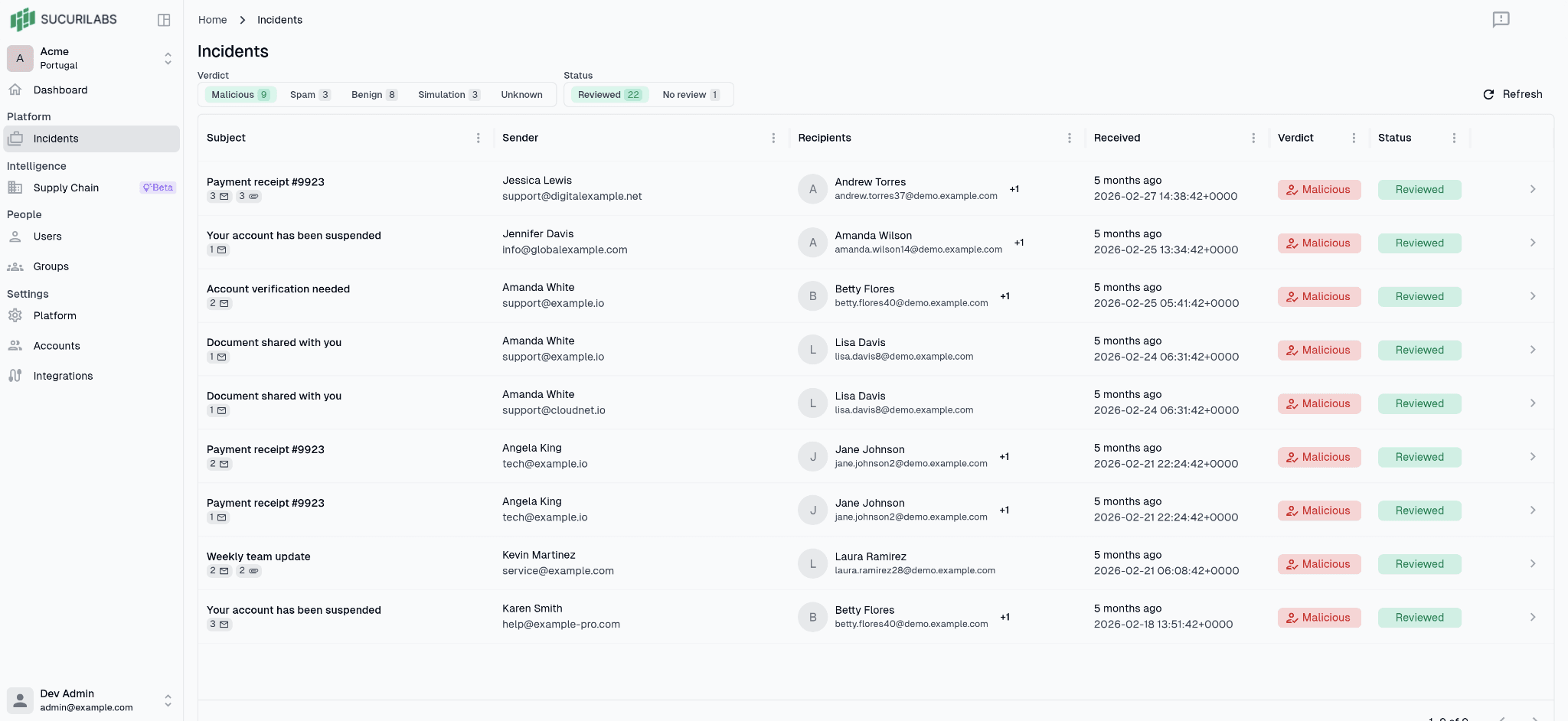
Figure 1 — Filtering incidents by verdict and review status before opening the message for investigation.
This page does not replace the investigation itself. It helps the analyst identify which messages require attention and provides enough context to prioritize the review.
After opening an incident, the analyst can examine the email content, header evidence, identity information, verdict, and remediation history without moving between separate investigation tools.
Review message metadata in one place
Before examining authentication or delivery infrastructure, the analyst needs to establish the basic context of the message: who sent it, who received it, when it was delivered, and which subject was presented to the user.
Sucurilabs extracts this information and presents it in a structured view alongside the remaining incident evidence.
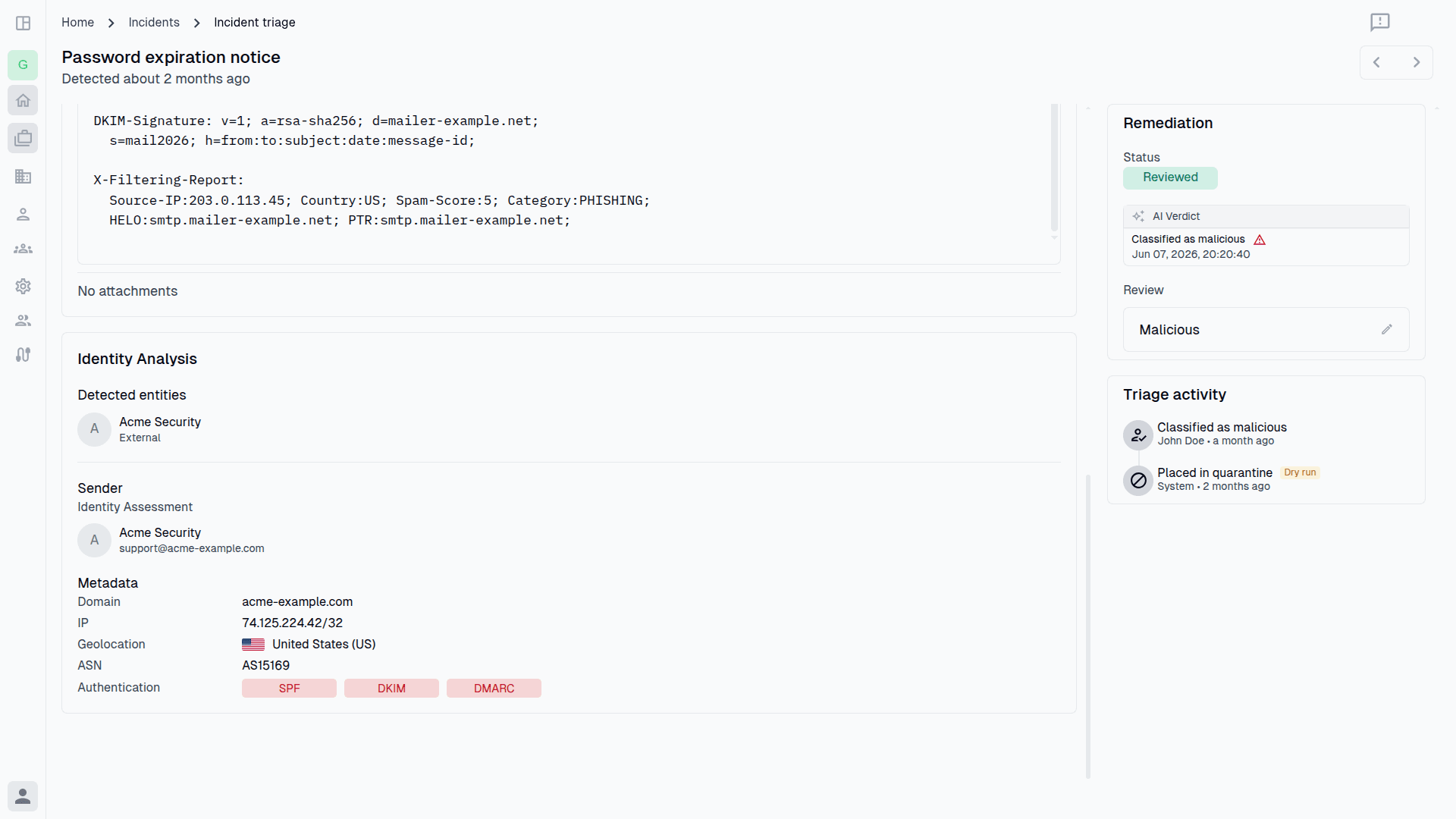
Figure 2 — Sender, recipient, subject, and delivery information presented together in the incident triage view.
The sender and recipient identities can be compared immediately, while the delivery timestamp helps confirm whether the message fits the expected communication timeline.
This gives the analyst a clear starting point before comparing the message identity with the source infrastructure and authentication results.
Analyze the sending infrastructure
During manual analysis, the analyst normally reviews the Received chain to identify the earliest external server involved in delivery.
A simplified header may contain several hops:
Received: from internal-mail-gateway.example
Received: from filtering-provider.example
Received: from smtp.external-sender.example (203.0.113.45)
The most recent Received header is usually added at the top. This means the analyst must
read the chain from the bottom upward and distinguish the original sending infrastructure
from internal gateways and filtering systems.
After identifying the likely source IP, the analyst may then use external services to obtain:
- The Autonomous System Number.
- The network or hosting provider.
- The approximate country or region.
- Reverse DNS information.
- Reputation or abuse history.
Sucurilabs extracts the relevant source infrastructure and presents the IP address, ASN, and geolocation inside Identity Analysis.
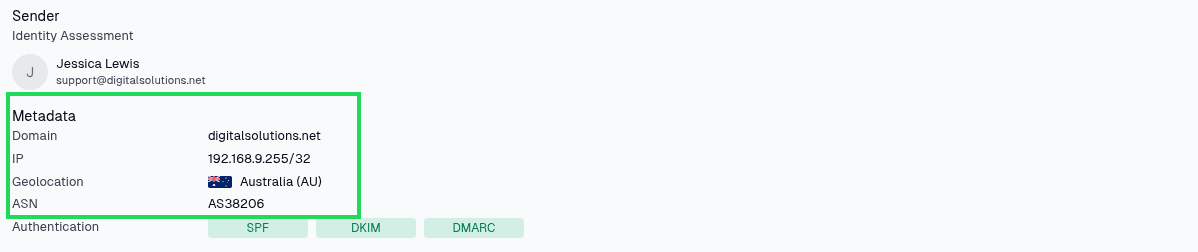
Figure 3 — Source IP address, ASN, geolocation, and authentication evidence presented in Identity Analysis.
This context helps the analyst evaluate whether the infrastructure is consistent with the expected sender.
For example, a supplier that normally sends email through Microsoft 365 may suddenly appear to send from an nrelated low-cost hosting network. That difference does not automatically prove that the message is malicious, but it provides a reason to investigate further.
By presenting the infrastructure context directly in the incident, Sucurilabs reduces the need to copy IP addresses between multiple enrichment tools.
Review SPF, DKIM, and DMARC together
During manual analysis, these results may appear inside a long Authentication-Results field:
Authentication-Results:
  spf=pass smtp.mailfrom=mailer.example;
  dkim=pass header.d=mailer.example;
  dmarc=fail header.from=company.example
Looking only at SPF and DKIM could make this message appear authenticated. However, DMARC fails because the authenticated domain does not align with the visible sender domain.
Sucurilabs presents the three results together so the analyst can assess them as related evidence rather than isolated checks.
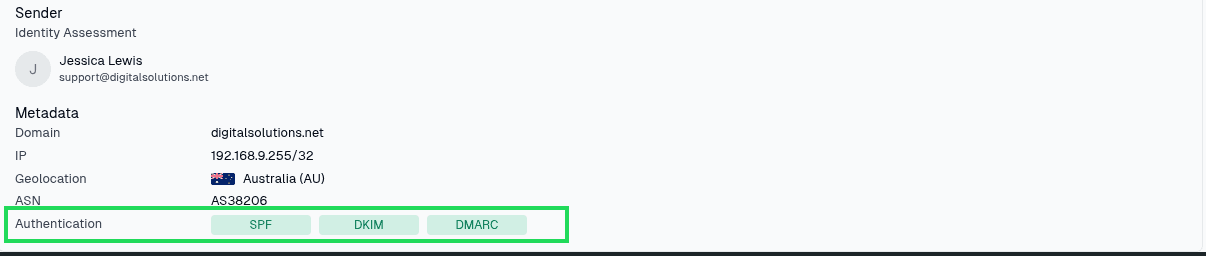
Figure 4 — SPF, DKIM, and DMARC results presented together for faster comparison.
A failed authentication result should not automatically determine the verdict. Legitimate forwarding, mailing lists, or configuration problems can also produce failures. In the same way, authentication passes do not prove that a message is safe. An attacker may send from a properly configured domain they control or from a compromised legitimate account.
The results must be interpreted together with the sender identity, infrastructure, message content, and expected communication pattern.
Reach a verdict with less manual reconstruction
In a manual workflow, analysts often build the investigation across several browser tabs, notes, lookup services, and security tools.
They may review the raw headers in one place, search the IP address in another, check domain information elsewhere, and then return to the original email to compare the results.
In Sucurilabs, the analyst can review:
- The rendered email and its text or HTML content.
- The structured header fields.
- The original raw EML.
- The extracted sender and recipient identities.
- The source IP, ASN, and geolocation.
- SPF, DKIM, and DMARC results.
- The current verdict and review status.
- Previous remediation activity.
This unified view helps analysts maintain the context of the investigation and reduces the risk of overlooking a relevant inconsistency.
The result is not an automatic conclusion based on a single authentication result. It is a more efficient investigation process in which the available evidence is already organized for analysis.
Verify the evidence manually when needed
During a manual investigation, the analyst must locate fields such as:
From
Reply-To
Return-Path
To
Cc
Subject
Date
These fields may appear in different parts of the raw message and may contain display names that make the addresses harder to compare quickly.
In Sucurilabs, the Headers tab presents the main message fields in a structured format.
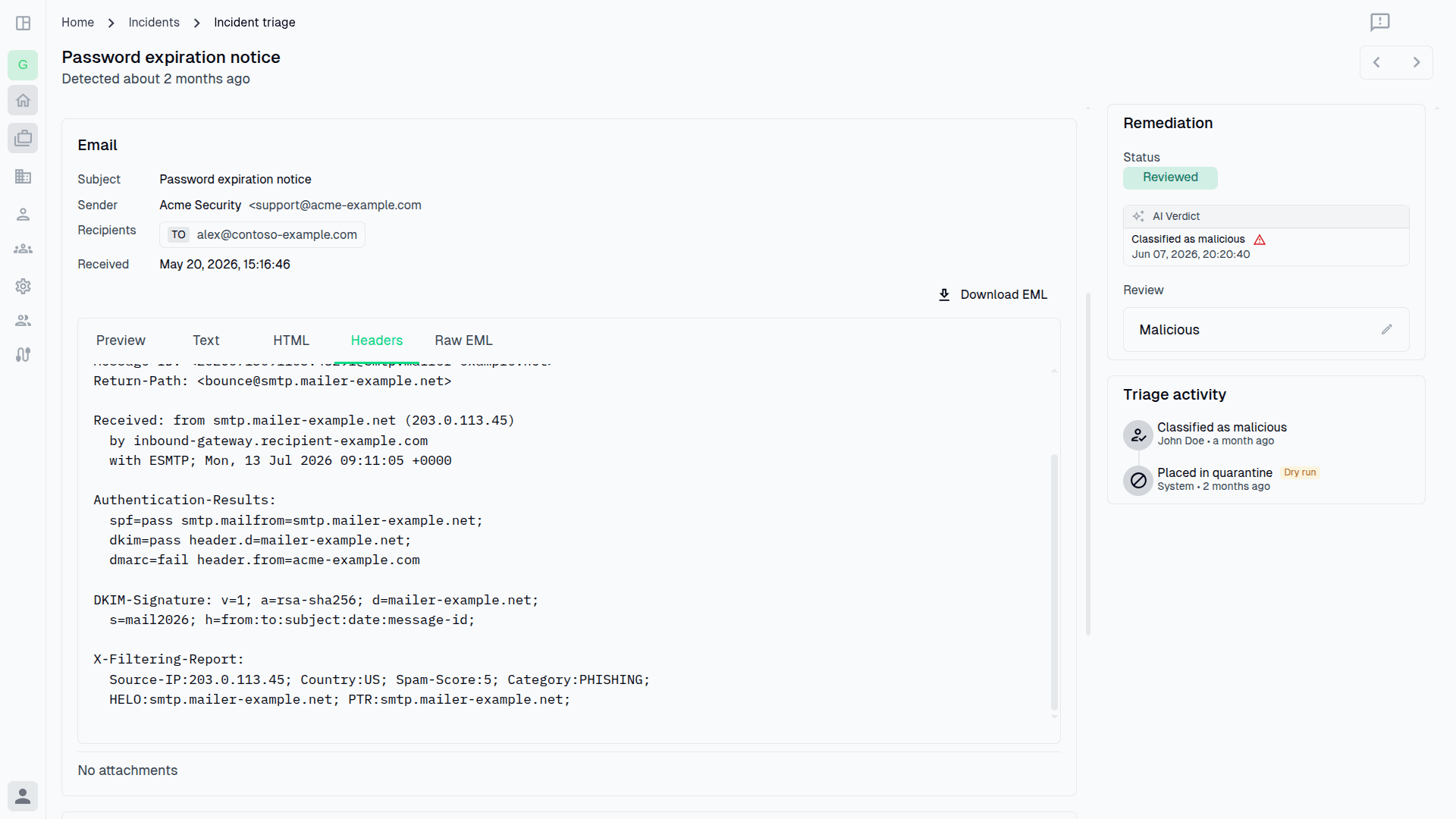
Figure 5 — Structured sender and recipient information extracted from the email headers.
The raw EML remains available when the analyst needs to validate the original message source or inspect a field that requires deeper analysis.