How to Detect Email Spoofing: A Plain-English Guide
Learn how to identify spoofed emails by checking sender details, authentication signals, suspicious links, and common fraud red flags.
A spoofed email does not always look like a scam.
It may arrive in an existing conversation, use a familiar company logo, address you by name, and contain an invoice that looks exactly like the documents you normally receive. The sender may appear to be a vendor, executive, colleague, bank, or delivery company.
Sometimes, the only visible difference is a single character in the sender’s domain.
That small difference can be expensive. According to the FBI IC3 2025 Internet Crime Report, the FBI received 24,768 Business Email Compromise complaints in 2025, representing more than $3 billion in reported losses.
This guide explains how email spoofing works, how to inspect a suspicious message, and when you should stop investigating and verify the request through another channel.
How to detect a spoofed email
Before trusting an important email:
- Expand the sender details and read the full email address.
- Compare the domain with the organization’s real domain.
- Check whether the Reply-To address is different.
- Inspect links before opening them.
- Question unexpected changes in payment or account information.
- Review SPF, DKIM, and DMARC results when available.
- Verify sensitive requests using a phone number or contact method you already trust.
No single test proves that an email is legitimate. The safest decision comes from combining technical evidence with business context.
What is email spoofing?
Email spoofing is the practice of making a message appear to come from someone other than its real sender.
To understand why this works, think about the different identities contained in an email:
- Display name: The name shown in your inbox, such as “Maria, Acme Supplies.”
- From address: The email address displayed when you expand the sender information.
- Reply-To address: The destination used when you reply.
- Return Path: The address mail servers use for delivery errors.
- Sending infrastructure: The servers that transmitted the message.
- Signing domain: The domain that digitally signed the email.
These identities can be different.
Most recipients only see the display name. Attackers take advantage of that by placing a trusted person or company name in the most visible part of the message while hiding the real sender elsewhere.
Spoofing, impersonation, and account compromise are not the same
People often use “spoofing” as a general term for any fake email. However, several different techniques can produce a convincing message.
| Technique | What the recipient sees | What is really happening |
|---|---|---|
| Exact-domain spoofing | finance@trustedvendor.com | The attacker tries to use the real company’s domain without authorization. |
| Display-name impersonation | “Trusted Vendor Finance” | The display name is familiar, but the underlying address is unrelated. |
| Lookalike-domain impersonation | finance@trusted-vend0r.com | The attacker registered a domain resembling the legitimate one. |
| Account compromise | The correct name and address | The attacker is sending from a real but compromised mailbox. |
This distinction is important because email authentication can help identify some forms of spoofing, but it cannot prove that every authenticated message is trustworthy.
A message from a lookalike domain may pass every authentication test. A message from a compromised vendor account may also appear technically legitimate.
1. Reveal the full sender address
Never judge a message by its display name alone.
An attacker can set almost any display name they want:
From: Maria Santos, Acme Supplies
Actual address: accounts@acme-supp1ies.com
At a glance, the message appears to come from Maria at Acme Supplies. The underlying address tells a different story.
In most email applications, you can reveal the complete address by selecting or hovering over the sender’s name. On mobile devices, you may need to tap the sender details or expand the message header.
Pay attention to the part after the @ symbol. That is the sender’s domain.
2. Inspect the domain character by character
Lookalike domains are designed to survive a quick visual check.
Common tricks include:
- Replacing the letter l with the number 1
- Replacing the letter o with the number 0
- Adding or removing a letter
- Inserting a hyphen
- Changing the domain ending
- Using a misleading subdomain
- Using international characters that resemble Latin letters
For example:
| Legitimate domain | Lookalike domain |
|---|---|
acmesupplies.com | acmesupp1ies.com |
northridge.com | north-ridge.com |
vendor.pt | vendor-payments.pt |
microsoft.com | microsoft.security-check.com |
In microsoft.security-check.com, the actual registered domain
is security-check.com. The word “microsoft” is only a subdomain chosen by whoever controls it.
Do not assume a domain is legitimate merely because the company name appears somewhere in the address.
3. Check the Reply-To address
The visible sender and the reply destination can be different.
For example:
From: billing@trustedvendor.com
Reply-To: trustedvendor.accounts@gmail.com
There are legitimate reasons for organizations to use separate reply addresses. Marketing platforms and ticketing systems often do this.
However, an unexpected Reply-To address is a meaningful warning sign, especially when the email involves money, credentials, sensitive documents, or account changes.
Do not test a suspicious email by replying to it. A normal reply may go directly to the attacker.
Instead, contact the organization using information from:
- Your vendor master record
- A previous verified invoice
- The vendor’s official website
- A trusted internal directory
- An established vendor portal
Do not use a phone number included in the suspicious message.
4. Inspect links before opening them
The text displayed in an email does not have to match the link’s real destination.
A button labelled View Microsoft Document might lead to an unrelated credential-harvesting site.
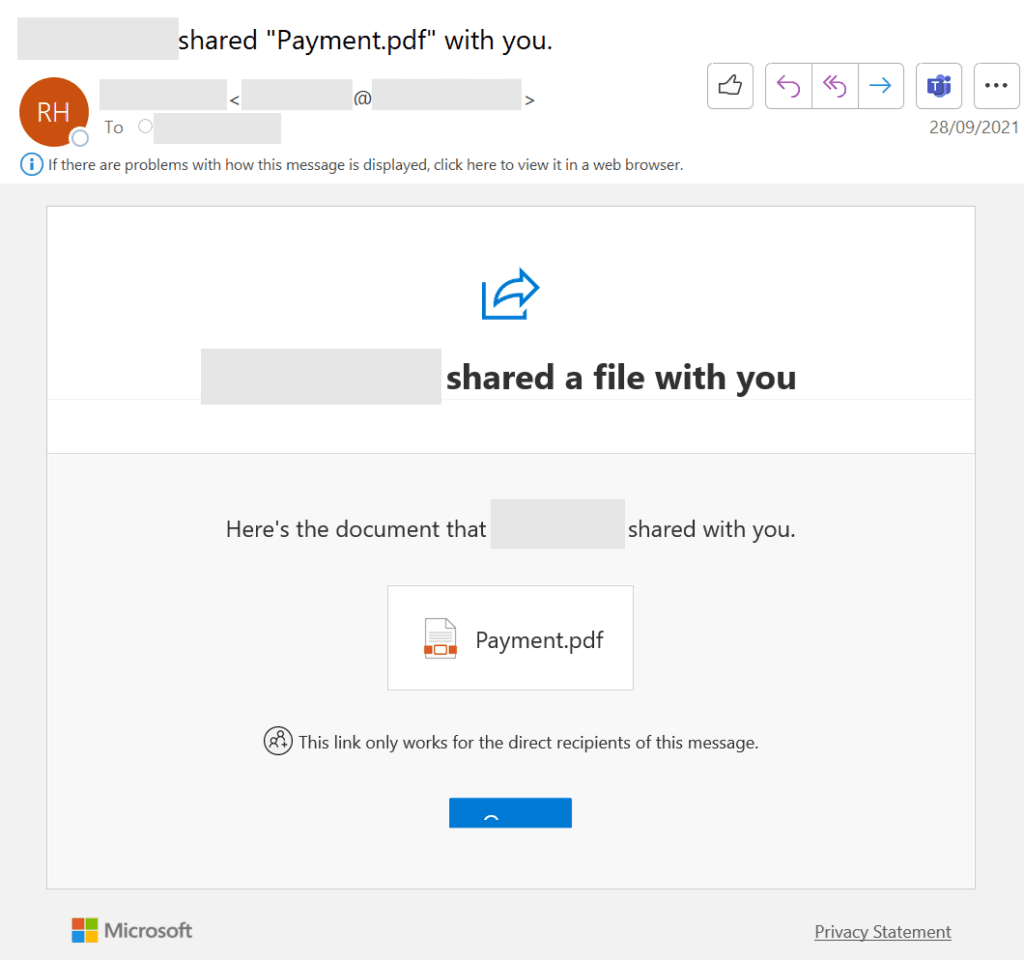
On a desktop, hover over a link without clicking it. Your email client should display the destination. On a mobile device, a long press may reveal the address, although the exact behavior depends on the application.
Check for:
- Misspelled or unfamiliar domains
- URL-shortening services
- Long addresses designed to hide the real domain
- A company name placed before an unrelated registered domain
- Links that do not match the message’s claimed sender
- Login pages hosted on unexpected services
A legitimate cloud-hosting domain does not automatically make a link safe. Attackers routinely use legitimate infrastructure to host malicious pages or redirect victims.
When in doubt, open the organization’s website yourself rather than following the email link.
5. Look for changes in the business process
Many dangerous emails do not contain malware or obviously malicious links.
They simply ask someone to do something.
Common examples include:
- Updating a vendor’s bank details
- Paying an invoice to a new account
- Resending a payment that supposedly failed
- Purchasing gift cards
- Sharing payroll or tax documents
- Changing an employee’s direct-deposit information
- Sending credentials or one-time authentication codes
- Moving a conversation to a personal email address
- Keeping a transaction confidential
Grammar and spelling are weak security controls. Modern fraudulent messages may be clear, polite, and professionally written.
Instead, focus on whether the request changes an established process.
Ask:
- Is this normal for this sender?
- Has the vendor used this account before?
- Is the payment destination new?
- Does this person normally make this type of request?
- Is someone asking us to bypass an approval?
- Has the tone, signature, timing, or document format changed?
- Does the request make sense in the context of the relationship?
A routine-looking message can still be fraudulent when the underlying business details are unusual.
6. Understand SPF, DKIM, and DMARC
Email systems use three main authentication mechanisms to help evaluate senders: SPF, DKIM, and DMARC.
SPF: Is this server allowed to send for the domain?
Sender Policy Framework, or SPF, lets a domain publish a list of servers authorized to send email on its behalf.
A passing SPF result means the message came through infrastructure permitted to use the domain checked by SPF.
It does not prove that the person shown in the visible From field sent the message.
DKIM: Was the message signed by an authorized domain?
DomainKeys Identified Mail, or DKIM, adds a cryptographic signature to an email.
The receiving system checks that signature using a public key published by the signing domain. A valid signature helps show that relevant parts of the message were not altered after signing and that the signing domain accepted responsibility for it.
The signing domain may not always be the same as the address visible to the recipient.
DMARC: Does the authentication align with the visible sender?
Domain-based Message Authentication, Reporting, and Conformance, or DMARC, connects the visible From domain with SPF and DKIM.
For DMARC to pass, at least one of the following must authenticate and align with the domain shown in the visible From address:
- SPF
- DKIM
The domain owner can also publish instructions for messages that fail, such as monitoring, quarantining, or rejecting them.
How to read the results
In Microsoft environments, administrators and security teams can inspect the message headers or use message-analysis tools.
A simplified result may look like this:
Authentication-Results:
  spf=pass
  dkim=pass
  dmarc=pass
A DMARC failure is a strong reason to treat a message cautiously. However, authentication failures can also result from forwarding, configuration mistakes, or legitimate third-party services.
More importantly, passing results do not make a message harmless.
An attacker can register a lookalike domain, configure SPF and DKIM correctly, and pass DMARC for that fraudulent domain. Microsoft notes that an impersonated domain may be registered and have email authentication DNS records configured. A compromised legitimate account may also pass authentication.
Authentication answers this question:
"Was this message authorized by this domain?"
It does not fully answer these questions:
"Is this domain the organization I intended to trust?"
"Is this request legitimate?"
7. Treat payment changes as a separate security event
A request to change bank details should never be treated as an ordinary email update.
It is a change to the trust relationship between your company and the vendor.
Before updating payment information:
- Pause the request.
- Compare the new information with your verified vendor record.
- Contact a known vendor representative through a separate channel.
- Use a phone number already held in your system.
- Require a second person to approve the change.
- Record how the information was verified.
- Update the ERP or accounting platform only after verification is complete.
The FBI IC3 report repeatedly highlights Business Email Compromise risk, and independent verification and secondary approval remain important controls for vendor payment changes.
This process remains important even when the email comes from the vendor’s real account. If that mailbox has been compromised, replying to it only continues the conversation with the attacker.
What an authentication pass does and does not tell you
Use this rule:
Authentication establishes a relationship between a message and a domain. It does not establish the legitimacy of the entire business request.
A message can pass SPF, DKIM, and DMARC and still be dangerous when:
- The domain is a convincing lookalike.
- The legitimate domain or mailbox has been compromised.
- An authorized third-party service is being abused.
- The sender is attempting fraud from their own authenticated domain.
- The email contains legitimate information copied from an earlier compromise.
Modern email security therefore evaluates more than authentication. Microsoft Defender for Office 365 describes protections that combine spoofing, impersonation, first-contact, authentication, and intent signals, alongside domain similarity, historical communication, sender infrastructure, behavioral patterns, message content, attachments, links, and the surrounding business context.
A 10-second spoofing checklist
Before acting on an important message, ask five questions:
1. Is the complete sender address correct?
Do not rely only on the display name.
2. Is the domain exactly right?
Check every character and the domain ending.
3. Does the Reply-To address make sense?
An unexpected destination needs investigation.
4. Is the request changing something important?
Payment accounts, credentials, payroll details, and approval procedures require additional verification.
5. Can I confirm it independently?
Use a trusted contact method that did not come from the email.
When any answer creates doubt, stop and report the message.
What to do with a suspected spoofed email
Do not:
- Reply to the sender
- Click links
- Open attachments
- Call phone numbers contained in the message
- Forward the email normally if doing so could activate links or alter evidence
- Approve a payment while the investigation is ongoing
Instead:
- Use your organization’s phishing-reporting function.
- Notify IT or security.
- Alert finance if the message involves invoices or payment information.
- Preserve the original message and headers.
- Verify the request through an established contact.
- Check whether other employees received similar messages.
- If money has already been sent, contact the bank immediately and begin the organization’s fraud-response process.
Fast reporting matters. A suspicious email sent to one employee may be part of a wider campaign targeting shared mailboxes, executives, purchasing teams, or vendor relationships.
What organizations should put in place
Individual vigilance helps, but employees should not be the only detection layer.
Organizations should:
- Configure SPF and DKIM for every sending domain.
- Deploy DMARC and move toward an enforcement policy.
- Enable user and domain impersonation protection.
- Detect domains that resemble the company or key vendors.
- Add clear external-sender and unusual-sender warnings.
- Provide a simple way to report suspicious messages.
- Protect shared finance and accounts-payable mailboxes.
- Require independent verification for payment changes.
- Use dual approval for changes to vendor bank information.
- Train employees around real workflows rather than spelling mistakes.
- Give IT and finance a shared process for reviewing high-risk messages.
The most effective controls connect email security with financial controls. Blocking malicious files is useful, but it does not stop a well-written request to replace a vendor’s bank account.
Should I reply and ask whether the request is real?
No. If the mailbox is controlled by an attacker, they will confirm their own request. Contact the person using a known phone number, established vendor portal, or another trusted channel.
The safest habit: verify changes, not writing quality
Spoofed emails are not always urgent, badly written, or technically unsophisticated.
The strongest warning may be a small change to something your organization already trusts, such as a domain, reply address, beneficiary name, bank account, or familiar payment process.
Inspect the sender. Check the domain. Review the authentication evidence. Most importantly, verify sensitive changes outside the email conversation.
When money or access is involved, familiarity is not proof.